
INTRODUCTIONWidget Areas

The following are default widget areas in the theme:
- Sidebar
- Sidebar Shop
- Footer
- Header Left
- Header Right
- Header Menu
- Header Logo
- Header Logo Responsive
- Responsive Menu
Sidebar, Sidebar Shop, and Footer widget areas display on both desktop and mobile devices.
Header Left / Right / Menu / Logo widget areas display only on desktop devices (note that you can set responsive breakpoint in Customize >Header and footer >Responsive header panel).
Header Logo Responsive, and Responsive menu widget areas display on smaller / mobile devices (below responsive breakpoint you set in Responsive header panel).
Widgets added to Header Logo Responsive widget areas will display next to logo on mobile devices.

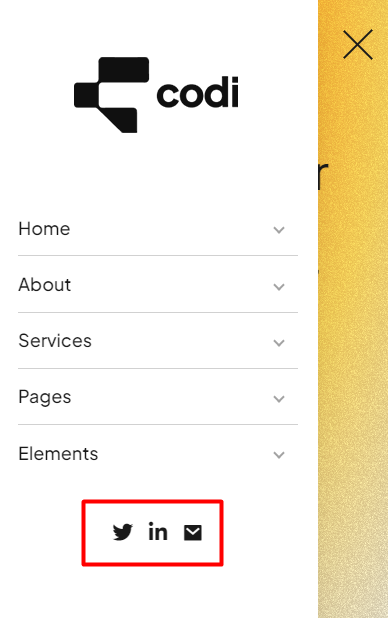
Widgets added to Responsive Menu widget areas will display within the mobile menu.
SECTION 01Custom Widget Areas
In order to create custom widget area navigate to Appearance >Sidebar panel on your dashboard.
Click on the ‘Add New’ button, and then fill the following fields:
- Enter custom widget area’s name (it should not be the same as the name of default widget area).
- In ‘Sidebar to replace’ field select which default widget area you want to replace.
- Then in ‘Add Display Rule’ field select on which pages you want this custom widget area to show.
Once you save the changes, navigate to Appearance >Widgets panel, and add widgets to your new widget area.

SECTION 02Homepage Widgets
Here is how it works:
Once you select your homepage, go to Appearance > Widgets and check if that homepage has its own custom widget area.
If it does, you have two options – first is to move widgets from this custom widget area to a corresponding default area.
Other solution would be to simply assign that custom widget area to display on all pages by selecting them in Appearance > Sidebars panel.

*Example is from Renata theme, but the process is the same for all of our themes.
SECTION 03Widgets
SECTION 04BB Text Image

SECTION 05BT Icon

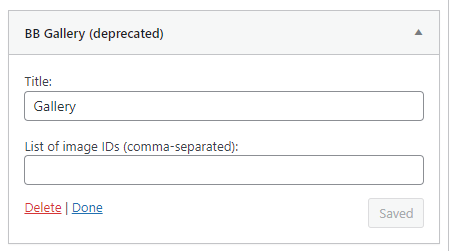
SECTION 06BB Gallery (deprecated)
*Note that this widget is deprecated, and it will be completely removed in future updates. We recommend switching to default WordPress Gallery widget, as it has the same features.
SECTION 07BB Recent Comments
SECTION 08BB Recent Posts
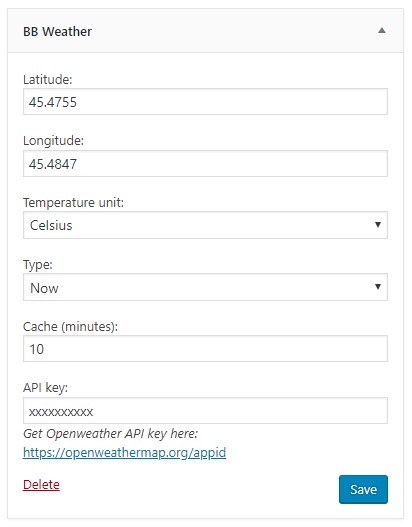
SECTION 09BB Weather
In order to get Openweather API Key please follow the steps from the following article – https://openweathermap.org/appid.
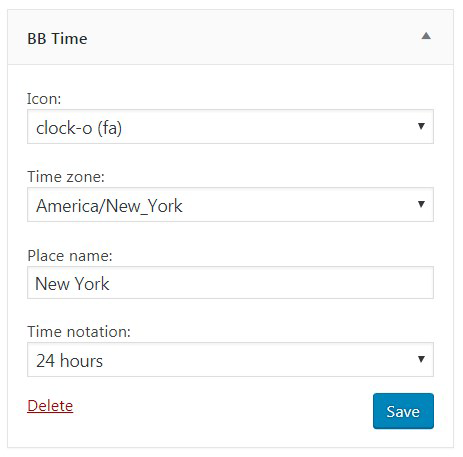
SECTION 10BB Time
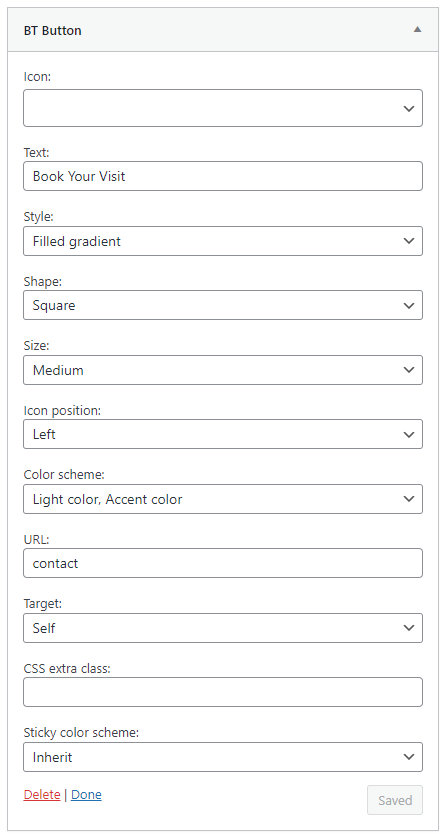
SECTION 11BT Button
SECTION 12BT Service
